¶ Managing canned text on certificates
CNF provides tools to insert saved chunks of text into certificates, either by default during
the certificate flow or on a per-certificate basis. These chunks of text are called canned
text blocks or canned comments.
The high-level steps for configuring canned text blocks on certificates are:
- Configure the canned text blocks outside of the certificate flow.
- Apply one or more canned text blocks to a particular certificate, and optionally choose to
always attach the selected text blocks to certificates of that type in the future.
¶ Managing canned text blocks
To configure text blocks for use on a certificate:
- Navigate to any permit file through a property profile. The easiest path is to use a permit
file on your muni property — the property loaded when you enter a new CNF session. You can
also reach your muni property by clicking the muni tools link in the Municipality box
in the upper left of the screen, then muni property. - On the property profile page, permit files live inside units, listed in the upper-right
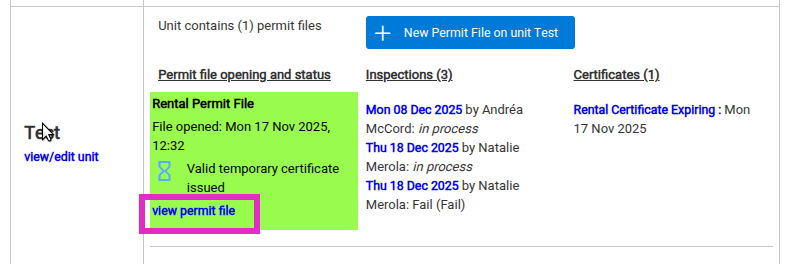
column. Click the view permit file link inside any permit file.
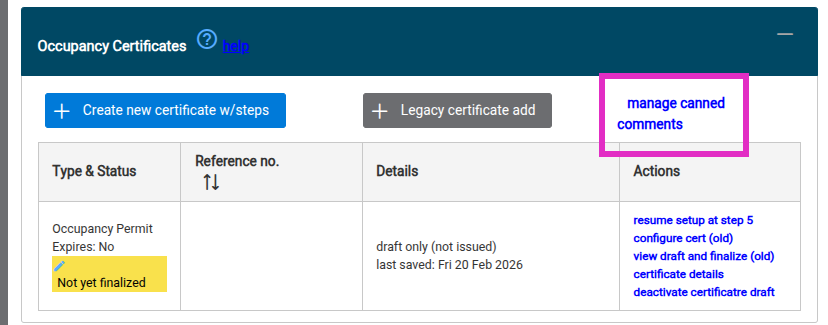
- Once on the permit file profile, locate the Occupancy Certificates panel in the left
column. - Click manage canned comments in the upper right of this panel.
- This opens the canned text block manager dialog, where you can create a new canned text
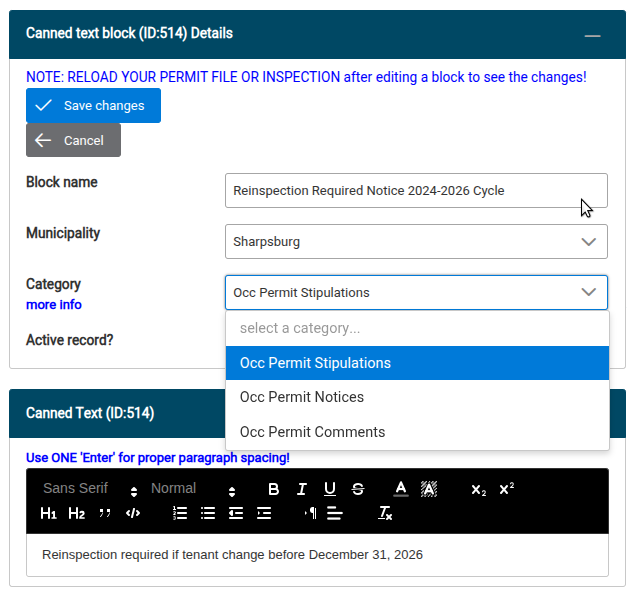
block, edit existing ones, or deactivate a block. - When creating or editing a canned text block, the Category dropdown selects which of
the three possible certificate labels your text block can be added to: Stipulations,
Notices, and Comments. All labels function the same way; which you assign your text block
to is a matter of preference.
- Save your changes to the text block and close the dialog with the X in the upper right.
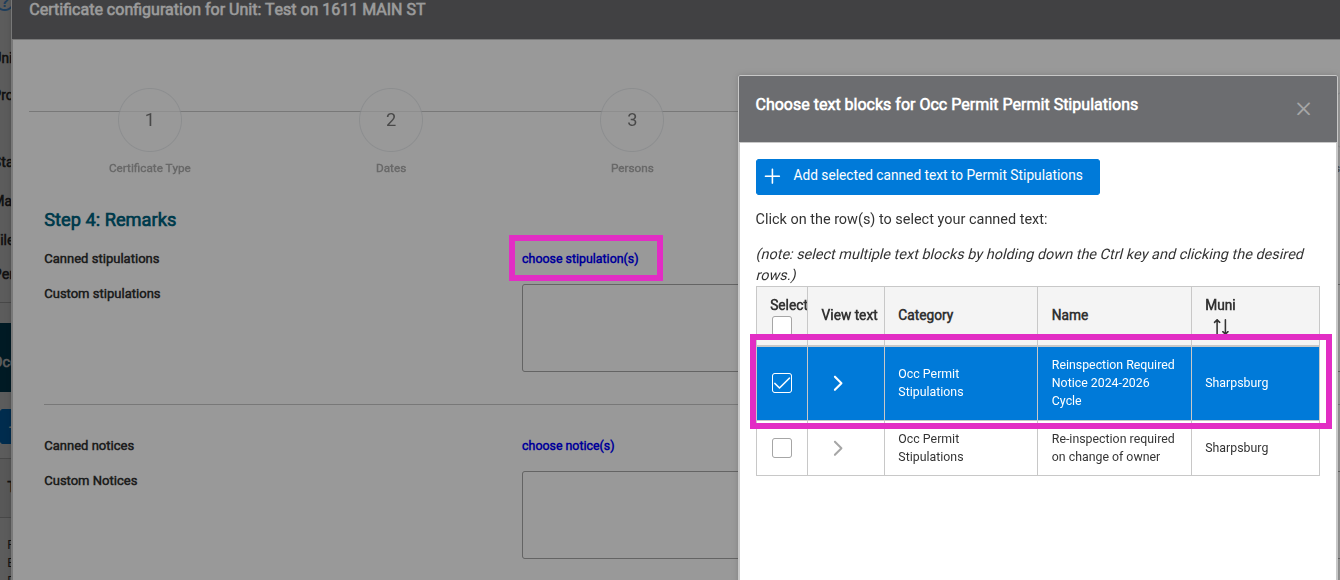
- Now, when configuring a certificate in the flow, you can apply your canned text block to
the label as desired using the blue choose (label name) link.