¶ Case management
Your CNF dashbaord provides two panels to search for and filter cases:
- Caseload manager panel (top right panel )
- CE case search panel (second panel on the right column)
¶ Caseload manager
The upper right dashboard panel breaks down all open code enforcement cases by priority assignment in color-coded cards. The individual case detail cards list violations and their statuses, letters, citations, and events. Letters can be viewed and managed directly from the case card and events can be logged.
¶ Caseload manger: Batch operations
The caseload manager provides a batch case management facility. •
Batch Case Close: Officers can batch close eligible cases, mark violations compliant on non-cited cases, and complete closures in one workflow
- Activate batch mode - “Choose batch operation” = batch close cases
o Use caseload groups to select the cases to close – click the number total link in open cases or sort by past due or ready to close etc.
o Select the case to close- check blue check mark in the upper left of the Case card
( select all or deselect all are also options )
o Once cases are selected the Count in the upper left will update. “Click Next : Review Batch”
o A summary list of selected cases display in the top left – if there are cases not eligible to close – “not eligible” will appear in read. To remove for any reason click remove
o Choose from "Reason for closure" drop down for case close reason.
o To finalize – “Commit: Batch Close Cases” & Confirmation message will appear after finalizing.
o Notes – if there are open vios on case, an additional text box will appear requiring to mark the violations as compliant or nullify with a comment
o Make sure to refresh when back on dashboard to update case counts
¶ Code Enforcement Case Search
The legacy alternative to the caseload manager is the CE case search function which returns a tabular view of matching cases.
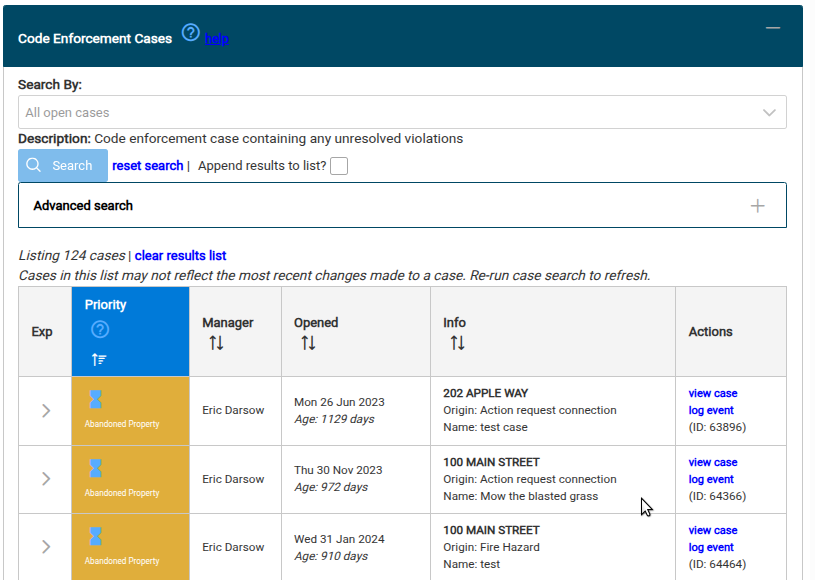
The tabular view provides sort tools on each column using the up and down arrow under each column header.
¶ Custom case searching
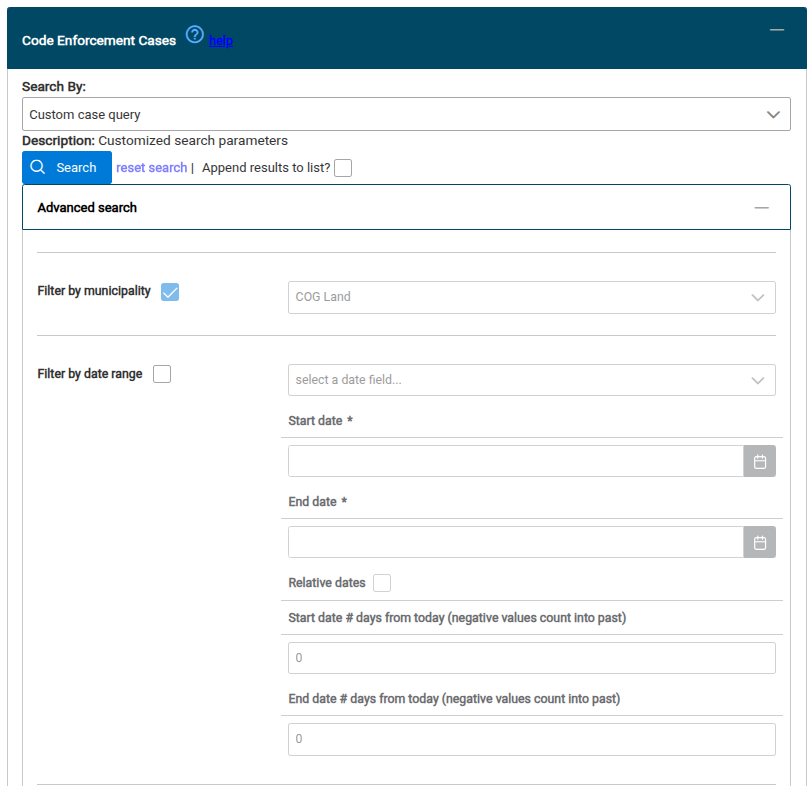
The Search By dropdown box provides a suite of pre-built queries for cases, as well as the fully customizable case query option called "Custom case query". After selecting this query, expand the Advanced search panel which exposes all available search filters which can be activated one by one and configured.
¶ Building a case drivelist
The best way to build an exportable list of cases by status is to use the case search tool and its sortable columns to organize cases by status. Follow these steps:
- Search for the cases you wish to move to a spreadsheet list
- Sort the list as you desire using column sort tools
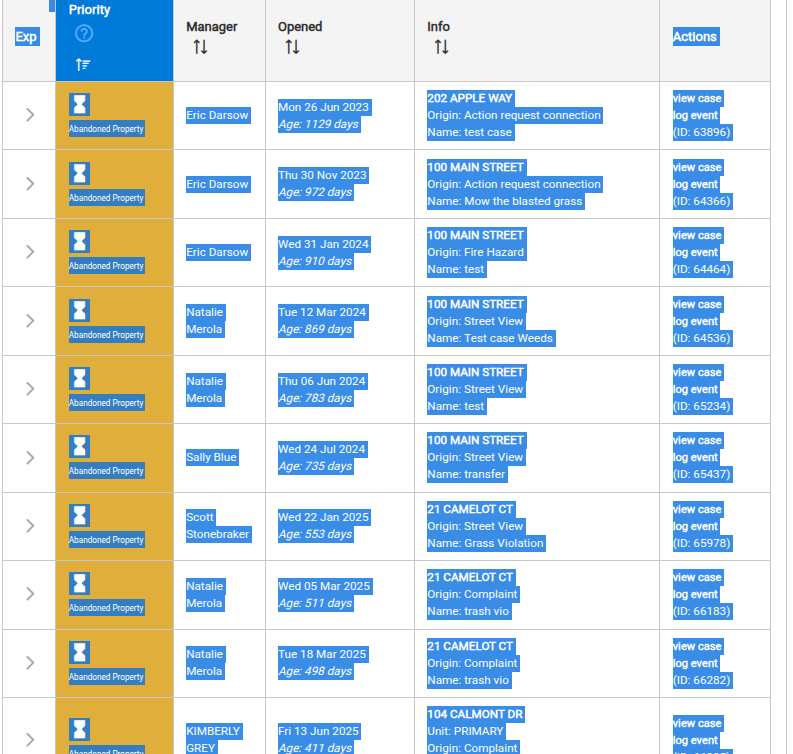
- Use your mouse to click-and-drag select the rows in the output table you wish to export. Then copy those rows with control + C or right-click -> copy
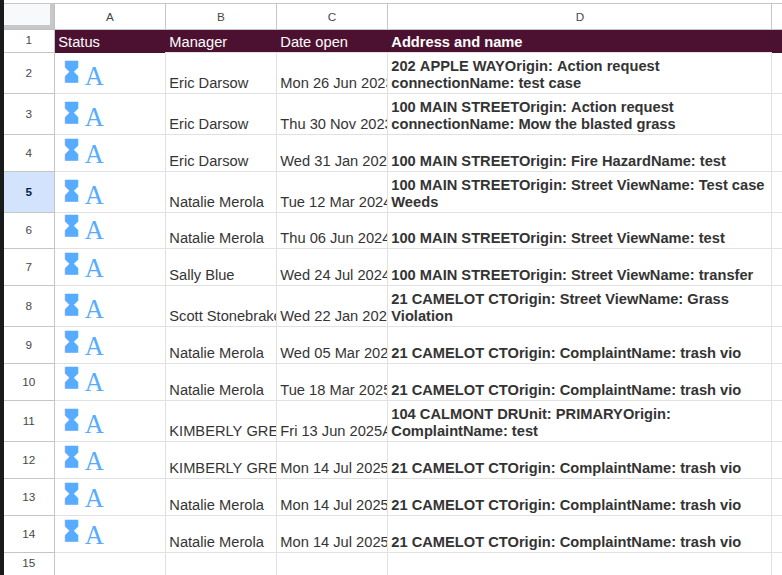
- Open your favorite spreadsheet program and paste in the copied rows. The HTML table renders into spreadsheet cells quite tidily.
- Clean up the paste by resizing columns, setting word wrap on cells with address, origin, and casename, and removing unneeded columns
We realize this is a stop-gap measure and look forward to implementing a better drivelist feature in the future
Selected rows:
Cleaned spreadsheet: